
Reel covers
Describe the intended wording and preserve the parts of the image that already work.
INSTAGRAM COVER EDITING
Update a Reel cover or carousel title while keeping the feed’s visual system consistent.
Edit image textUpload a JPG, PNG, or WebP. Describe the exact text change.
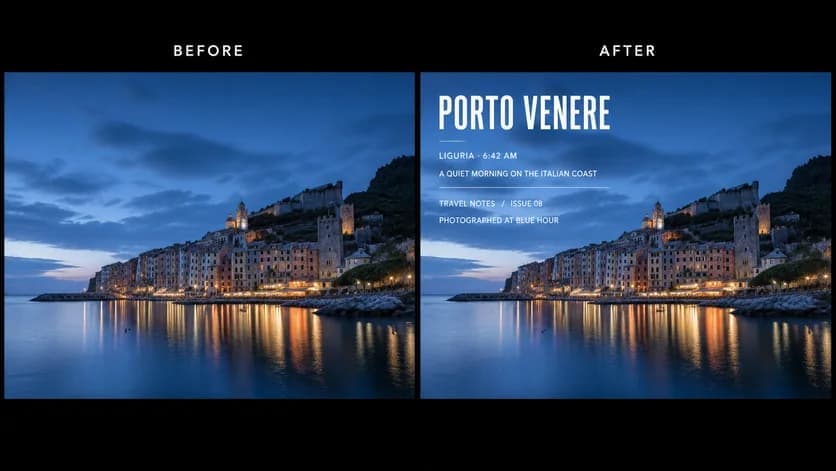
WHAT YOU CAN UPDATE
Use the finished image as context, make the requested copy change, then review the visual result before publishing.
Describe the intended wording and preserve the parts of the image that already work.
Describe the intended wording and preserve the parts of the image that already work.
Describe the intended wording and preserve the parts of the image that already work.
ABOUT THIS IMAGE EDIT
Instagram visuals appear in several crops across the feed, profile grid, and full-screen views. Use concise copy and preserve the main subject when updating the cover.
Confirm current aspect ratios, crop previews, and branded-content requirements in the platform before publishing.
Open the image text editorHOW IT WORKS
The editor uses your image and instruction as context. You stay in the conversation until the result is ready.
Start with a JPG, PNG, or WebP poster, photo, menu, screenshot, product visual, or AI-generated graphic.
Say exactly what to replace, remove, or add—and explain what should stay visually unchanged.
Check the result, ask for follow-up changes in the same chat, then download the version you approve.
Review before publishing. Check the current feed and profile-grid crops so important words and subjects remain visible.
COMMON QUESTIONS
Yes. Upload the cover image and quote the exact new title or label.
Reference the current placement, color, and hierarchy, and use similarly sized copy across the series.
Not automatically. Preview current feed, grid, and full-screen crops before posting.
Only modify images you own or have permission to use, and do not misrepresent another person or brand.
MAKE THE EDIT
Open the editor here, upload your visual, and describe the exact result you want.