
Brand-consistent mockups
Describe the intended wording and preserve the parts of the image that already work.
STYLE-AWARE TEXT EDITING
Use the existing lettering as visual context for a replacement that belongs in the same design.
Edit image textUpload a JPG, PNG, or WebP. Describe the exact text change.
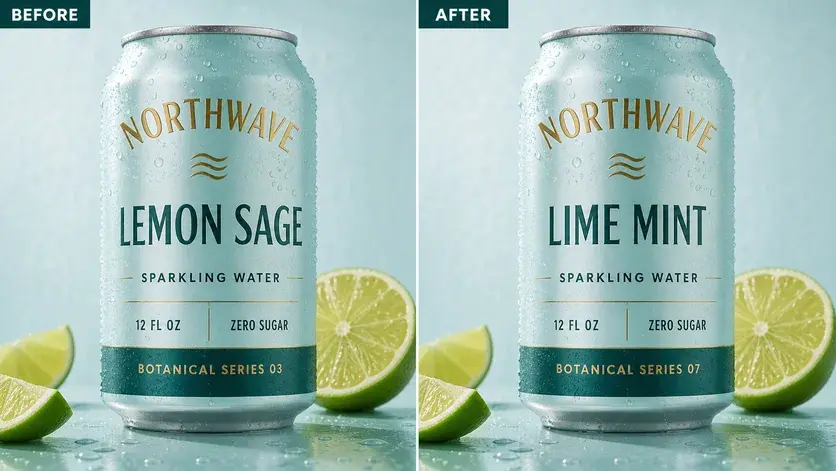
WHAT YOU CAN UPDATE
Use the finished image as context, make the requested copy change, then review the visual result before publishing.
Describe the intended wording and preserve the parts of the image that already work.
Describe the intended wording and preserve the parts of the image that already work.
Describe the intended wording and preserve the parts of the image that already work.
ABOUT THIS IMAGE EDIT
When you do not know the font name, describe visible characteristics such as serif or sans serif, weight, width, case, color, texture, shadow, and alignment.
AI can aim for a visually similar result, but it does not guarantee the exact font file, kerning, or glyph construction. Use a traditional design tool when exact brand typography is mandatory.
Open the image text editorHOW IT WORKS
The editor uses your image and instruction as context. You stay in the conversation until the result is ready.
Start with a JPG, PNG, or WebP poster, photo, menu, screenshot, product visual, or AI-generated graphic.
Say exactly what to replace, remove, or add—and explain what should stay visually unchanged.
Check the result, ask for follow-up changes in the same chat, then download the version you approve.
Review before publishing. For exact typography, use the licensed font and original design file. This workflow is best for a visually coherent image result.
COMMON QUESTIONS
The image provides visual style context, but the workflow does not guarantee exact font identification or reproduction.
Describe case, weight, width, serif style, color, outline, shadow, texture, size, alignment, and spacing.
Ask for a balanced fit, then check line breaks, letter size, spacing, and the surrounding hierarchy.
Use one when you need a specific licensed font file, exact kerning, vector output, or pixel-level brand control.
MAKE THE EDIT
Open the editor here, upload your visual, and describe the exact result you want.